CP Media Library
ClearPath Media Library
Organize, Manage, Clean Up, and Back Up Your WordPress Media Library
A growing WordPress Media Library can quickly become difficult to manage. Images, ZIP archives, documents, screenshots, and downloadable files pile up over time, making it harder to find what you need and easier to upload duplicates.
ClearPath Media Library gives you a cleaner, more organized workspace for managing WordPress media. Browse files visually, create folders, assign categories and tags, review media-health information, export ZIP backups, and clean up unnecessary files with greater confidence.
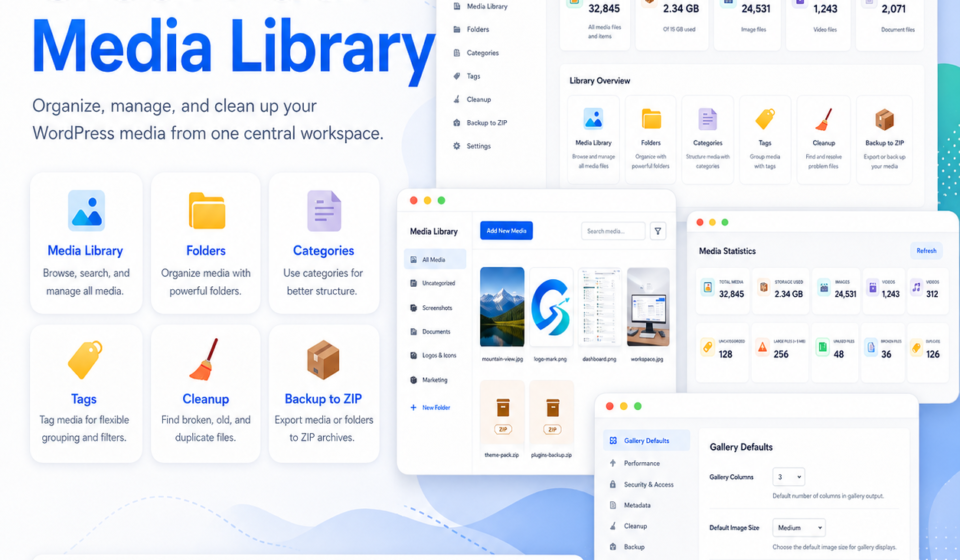
Everything in One Central Workspace
ClearPath Media Library adds a dedicated dashboard for your most important media-management tools.
| Feature | What It Helps You Do |
|---|---|
| Media Library | Browse, search, upload, and manage media attachments |
| Folders | Organize files into hierarchical folder structures |
| Categories | Group media using reusable categories |
| Tags | Add searchable labels for flexible filtering |
| Media Cleanup | Review files that may need attention |
| Backup to ZIP | Export media files or folders before maintenance work |
| Settings | Configure gallery, metadata, backup, cleanup, and advanced options |
Browse Media Visually
ClearPath Media Library provides a visual file grid that makes it easier to understand what is stored on your website.
Images appear as thumbnails, while ZIP archives and other file types use clear file-type previews. This helps you browse a mixed collection of uploads without relying on generic missing-image placeholders.
Use the library to:
- Upload new files
- Search attachments
- Browse media by folder
- Review unorganized files
- Select multiple items for bulk actions
- Identify files that may need cleanup
Organize Files with Folders
Create folders and subfolders that match the way you work.
You can organize media by:
- Website section
- Client
- Campaign
- Product
- Content type
- Project
- Download category
- Archive status
Example:
Marketing
├── Website Banners
├── Social Media
├── Product Launches
└── Email Graphics
Hierarchical folders make it easier to manage large libraries while keeping your WordPress attachment records intact.
Add Categories and Tags
Folders help you decide where files belong. Categories and tags add more flexible ways to group and find related media.
Media Categories
Use reusable categories for broad organization, such as:
- Branding
- Product Images
- Documentation
- Marketing
- Blog Content
- Downloads
Media Tags
Use tags for more specific filtering, such as:
homepage
featured-banner
spring-sale
client-a
2026-campaign
A file can live inside a folder, belong to a category, and include several tags at the same time.
Review Media Library Statistics
The dashboard provides a snapshot of your Media Library so you can quickly understand what is stored on your website.
You can review information such as:
| Statistic | What It Shows |
|---|---|
| Total Media | Number of WordPress attachment records |
| Storage Used | Approximate size of readable original files |
| Images | Number of image attachments |
| Videos | Number of video files |
| Audio | Number of audio files |
| Documents | PDFs, text files, office documents, and similar uploads |
| Unattached Media | Files without a parent post |
| Missing Alt Text | Images that may need accessibility improvements |
| Folders, Categories, and Tags | Current organization totals |
Clean Up Media More Carefully
ClearPath Media Library helps you review files before deleting them.
The cleanup area can help identify:
- Broken media records
- Older unattached files
- Potential duplicates
- Redundant uploads
- Files that may need manual review
An unattached file is not automatically unused. WordPress files may still be referenced by a theme, page builder, widget, shortcode, plugin, or custom field.
A safer cleanup workflow is:
- Review your media statistics.
- Inspect files that may need attention.
- Confirm whether each file is still in use.
- Export a ZIP backup when needed.
- Delete only files you have reviewed.
Export Backups to ZIP
Before reorganizing or deleting files, create a backup.
ClearPath Media Library can help export media files or selected folders to ZIP archives. This is useful when you need to:
- Back up files before cleanup
- Archive older projects
- Move assets between websites
- Preserve a folder before reorganizing it
- Collect files for offline review
Configure Gallery Defaults
The plugin includes settings for gallery and file-display behavior.
You can configure:
- Default gallery columns
- Default image size
- Image link target
- Performance preferences
- Security and access settings
- Metadata behavior
- Cleanup thresholds
- Backup limits
- Folder defaults
- Advanced retention controls
These settings help keep your media workflow consistent while still giving you room to customize the plugin for your website.
Publish Responsive Galleries and File Lists
ClearPath Media Library can also help you display organized media on the front end of your website.
Potential uses include:
- Image galleries
- Download libraries
- Documentation pages
- Client resource areas
- Product image collections
- File directories
- ZIP archive listings
By combining folders, categories, tags, and gallery defaults, you can turn your Media Library into a more useful content-management system.
Who Is ClearPath Media Library For?
ClearPath Media Library is useful for:
- Business websites
- Bloggers and publishers
- Online stores
- Freelancers and agencies
- Plugin and theme developers
- Content teams
- Website administrators managing large media libraries
Why Choose ClearPath Media Library?
Clearer Organization
Use folders, categories, and tags together to create a flexible media structure.
Faster File Discovery
Browse files visually, search attachments, and locate uploads more quickly.
Better Media Awareness
Review storage usage, file totals, missing alt text, unattached records, and organization statistics.
Safer Cleanup
Inspect files before deletion and create backups before maintenance work.
Easier Backups
Export media files or selected folders into ZIP archives.
Frequently Asked Questions
Does the plugin replace the WordPress Media Library?
No. It works with WordPress attachment records and adds a more organized interface for browsing, managing, backing up, and reviewing media.
Can I organize files into folders?
Yes. You can create, rename, and organize hierarchical media folders.
Can I use categories and tags?
Yes. Categories provide structured grouping, while tags make flexible filtering easier.
Can I identify unattached files?
Yes. The dashboard and cleanup tools help you review attachments without a parent post.
Does unattached mean safe to delete?
No. A file may still be used by themes, plugins, widgets, page builders, shortcodes, or custom fields.
Can I create ZIP backups?
Yes. You can export media files or selected folders before cleanup or maintenance work.
Take Control of Your WordPress Media Library
Organize files more clearly. Find uploads faster. Review your Media Library health. Back up important files. Clean up with confidence.
Get ClearPath Media Library Today